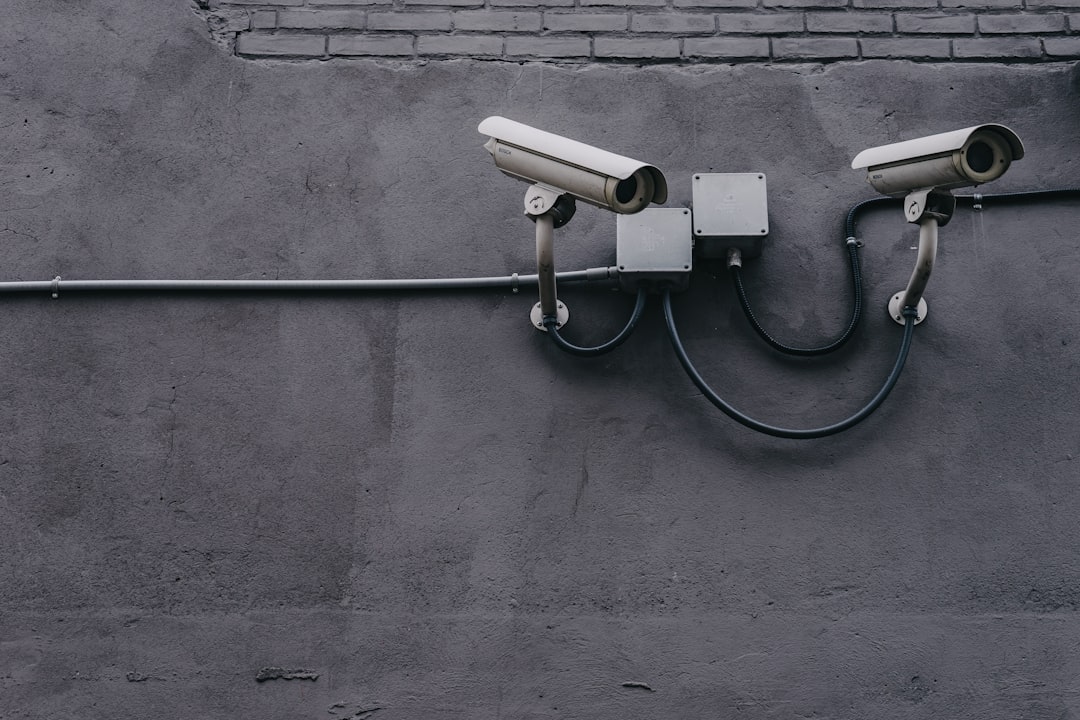
A smart camera can improve awareness around your home, but its privacy depends on more than where you mount it. This reusable checklist covers account security, camera sharing, microphone controls, recording retention, network settings, firmware, and recovery steps so you can review your setup before acting and return to it whenever an app or device changes.
Overview
Smart home camera security has two connected goals: prevent unauthorized access and limit the amount of personal information the camera collects or keeps. A strong setup addresses both. For example, a unique password helps protect the account, while a shorter recording-retention period reduces the amount of footage available if the account is compromised or the device is discarded.
Start by identifying every camera, the account that controls it, and any other service connected to it. This may include a smart-home platform, voice assistant, cloud-storage plan, router, local memory card, or household member’s account. Privacy settings are often split between the camera app, the device itself, and the platform used for automation, so reviewing only one app screen is not enough.
Use the following principle when making decisions: collect and share only what is necessary for the camera’s intended job. An outdoor camera may need motion alerts but not continuous audio. An indoor camera may need a privacy mode when people are home. A camera covering a shared path may need an activity zone that excludes a neighbor’s property or a public area. For placement and blind-spot guidance, see the security camera placement guide.
Checklist by scenario
When installing a new camera
- Choose the account carefully. Use an email address you control and expect to keep. Do not create a shared household login if the service supports separate users and permissions.
- Create a unique password. The camera account password should not be reused for email, banking, your router, or another smart-home device. A password manager can help generate and store a long, unique password.
- Turn on two-factor authentication. Prefer the strongest option the provider supports and complete the recovery setup at the same time. Store backup codes somewhere secure rather than in a note beside the camera.
- Review the initial privacy defaults. Check microphone, recording, cloud upload, motion detection, person detection, and notification settings instead of accepting the installation wizard without reading it.
- Update before relying on the camera. Install available app and firmware updates, then confirm that automatic updates or update notifications are enabled where appropriate.
- Limit the view. Aim the lens only at the area you need to monitor. Use privacy masking or activity zones to exclude windows, neighboring property, bedrooms, bathrooms, or other areas that do not need coverage.
When adding a household member, guest, or installer
- Invite the person through the camera’s official sharing feature rather than giving them your password.
- Choose the lowest permission level that meets the need. Viewing live video, receiving alerts, changing settings, downloading clips, and deleting footage are different capabilities.
- Set an end date for temporary access when the app allows it. Remove old users after a move, repair visit, house sale, pet-sitting arrangement, or change in household.
- Check whether shared users can access every camera or only selected devices. Treat indoor cameras and cameras facing private areas as a separate permission group.
- Review connected voice assistants and smart-home platforms. A person who can control the broader platform may be able to view cameras or change automations.
When using audio or indoor monitoring
- Decide whether two-way audio is necessary. If it is not, disable the microphone rather than leaving it active by default.
- Use a physical shutter, privacy switch, or scheduled privacy mode when available. A software setting is useful, but a visible physical control can make the camera’s status easier to confirm.
- Tell household members and visitors how indoor monitoring works. Avoid placing cameras where people reasonably expect private conversations or personal activities.
- Check whether audio is included in recordings, live streams, downloaded clips, or event previews. These controls may be separate.
When choosing storage and retention
- Identify where recordings are stored: the provider’s cloud, a memory card, a local hub, or a network video recorder. Each option has different access and recovery considerations.
- Set the shortest retention period that supports your purpose. If you need only event review, continuous long-term storage may be unnecessary.
- Check who can download or delete clips and whether deleted footage remains in a temporary area. Read the current in-app explanation and provider documentation before relying on a deletion control.
- Secure local storage as well as cloud accounts. A memory card or recorder can contain sensitive footage even when the camera account is protected.
For a broader comparison of storage choices, use the security camera storage guide. If avoiding a subscription is important, compare the practical limits of local storage rather than assuming every no-subscription security camera offers the same alerts, backup, or remote access.
When the camera connects to Wi-Fi or a smart-home platform
- Use a current router password and install router firmware updates. The camera is part of your network, so router security is part of camera account security.
- Consider a separate guest or device network if your router supports it and the camera remains compatible with the features you need.
- Review integrations that can trigger locks, lights, alarms, or recordings. An automation should have a clear purpose and a predictable failure behavior.
- Keep a record of the camera’s model, account email, installation location, and reset procedure in a secure household document. This helps with recovery without exposing passwords.
What to double-check
Use this settings table as a model-agnostic audit. Menu names vary, so search the camera app, router interface, and smart-home platform for equivalent controls.
| Area | Review | Preferred action |
|---|---|---|
| Account | Password, sign-in history, recovery email, two-factor authentication | Use unique credentials, enable two-factor authentication, and remove unfamiliar sessions. |
| Users | Shared accounts, roles, invitations, temporary access | Use individual accounts and least-privilege permissions. |
| Camera | Microphone, privacy mode, indicator light, motion and activity zones | Disable unnecessary audio and exclude areas that do not need monitoring. |
| Storage | Cloud, local storage, retention, downloads, deletion | Choose a retention period that matches the purpose and secure physical storage. |
| Network | Wi-Fi password, router updates, device network, remote access | Keep the router current and separate smart devices when practical. |
| Software | Camera firmware, mobile app, notification permissions | Update from official sources and remove alerts you do not need. |
| Integrations | Voice assistants, routines, locks, alarms, other platforms | Disconnect unused services and test each security-related automation. |
After changing settings, test the result from a normal user account. Confirm that the camera still records or alerts as intended, that restricted users cannot open settings, and that privacy mode actually stops the behavior you meant to stop. Also check the camera’s status from outside your home network if remote access is part of its purpose.
Common mistakes
- Sharing the owner password. This makes it difficult to remove access cleanly and gives the other person more control than necessary.
- Leaving every feature enabled. More detection types, audio, integrations, and notifications can create more data and more opportunities for mistakes without improving the camera’s actual job.
- Assuming a privacy mask covers the entire recording. Confirm whether the mask applies to live view, saved clips, previews, and downloads.
- Ignoring old accounts. Previous residents, former partners, installers, contractors, and unused email addresses should not retain access after circumstances change.
- Forgetting physical access. A camera, memory card, hub, or recorder should be protected from casual removal or tampering, especially in shared spaces.
- Treating an offline camera as a privacy feature. A camera that repeatedly disconnects may miss security events and may not apply settings consistently. Use the camera-offline troubleshooting guide to restore reliable operation, then repeat the privacy audit.
- Failing to test recovery. If your phone is lost or your authentication method changes, you should know how to regain access without weakening the account or abandoning the device.
When to revisit
Privacy settings are not a one-time installation task. Repeat this audit after installing a camera, changing the account email, adding or removing a household member, replacing the router, enabling a new smart-home integration, or moving a camera to a different room. Review it after a repair, reset, sale, or change in living arrangements as well.
Make a routine review part of seasonal home-security planning and conduct a fuller check at least when you notice a major app or firmware change. Manufacturers may reorganize menus, add authentication choices, change retention controls, or introduce new integrations. Recheck the current settings and policy information instead of relying on screenshots or instructions saved from an earlier version.
A printable five-minute privacy audit
- List each camera, its location, controlling account, and storage method.
- Confirm a unique password, two-factor authentication, recovery method, and recent sign-in activity.
- Remove unknown users, expired invitations, unused integrations, and old devices.
- Check microphone, privacy mode, activity zones, recording schedule, notifications, and retention.
- Update the camera, app, and router; then test live view, alerts, restricted access, and recovery.
Save the date of the audit and note any setting that needs follow-up. If you are designing a wider DIY home security system, combine this review with a physical coverage check using the camera placement guide. Reliable coverage and restrained data collection work best together: monitor the areas that matter, protect the account that controls them, and revisit the choices whenever your home or the technology changes.